What Are Cookies and How Do They Work A Complete Guide
Cookies are small text files that websites store in your browser to remember you, your preferences, and your activity. They power logins, shopping carts, and personalization, but they also raise privacy concerns you can manage through browser settings.
Understanding what are cookies and how do they work is easier than it sounds, even though nearly every website you visit relies on them. In this guide, we’ll explain cookies in plain English, break down the main types, and show you how to take control of them in your browser.
- Definition: Cookies are tiny text files that store data about your browsing session and preferences.
- Types: First-party, third-party, session, and persistent cookies each serve a different purpose.
- Benefits: Cookies keep you logged in, remember your cart, and personalize content.
- Privacy: Third-party cookies enable cross-site tracking, which is why browsers are phasing them out.
- Management: You can block third-party cookies and clear existing ones in any major browser in.
What Are Cookies and How Do They Work? The Simple Answer
A Plain-English Definition of Browser Cookies
A browser cookie — also called an HTTP cookie or web cookie — is a tiny text file that a website saves on your device when you visit. It contains small pieces of data, such as a unique identifier, your language preference, or the items in your shopping cart. When you return to that site, your browser sends the cookie back, and the site recognizes you.
Think of a cookie as a name tag or a loyalty card. It doesn’t carry your entire browsing history; it simply helps the website remember something specific about your visit. Most cookies are only a few kilobytes and contain no executable code, which means they can’t run programs or install software on their own.
How a Cookie Is Created, Stored, and Sent Back to the Server
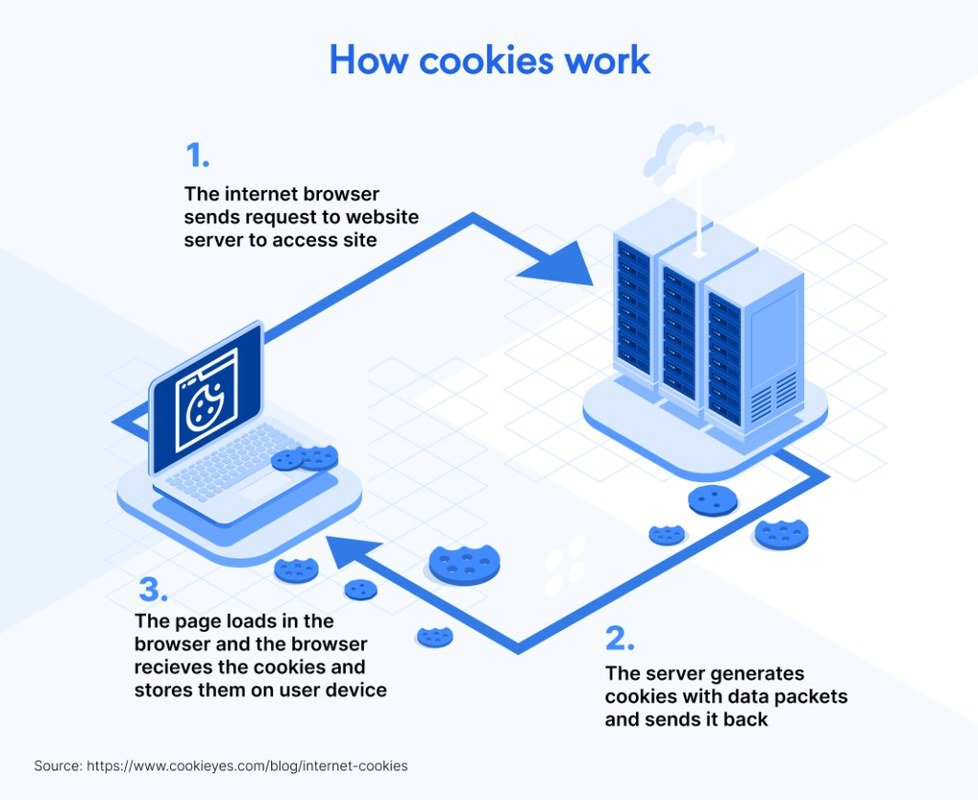
The process happens in four quick steps. First, you visit a website, and your browser sends a request to the site’s server. Second, the server responds with the page content plus one or more Set-Cookie headers. Third, your browser stores those cookies in a dedicated folder or database on your device. Fourth, on your next visit, the browser includes the relevant cookies in its request headers so the server can recognize you.
This back-and-forth is what makes features like “Welcome back, Alex” or a pre-filled shopping cart possible. Without cookies, every page load would treat you as a brand-new visitor.
The first browser cookie was created in 1994 by Lou Montulli, an engineer at Netscape, to solve a simple problem: remembering what shoppers had placed in their carts. The name “cookie” comes from the computing term “magic cookie,” which refers to a small piece of data passed between programs.
The Main Types of Cookies You Should Know About

A diagram showing the main types of web cookies and their purposes.
First-Party vs. Third-Party Cookies: What’s the Difference?
The most important distinction is who sets the cookie. A first-party cookie comes directly from the website you’re visiting — the same domain shown in your address bar. It handles core functions like keeping you logged in or remembering your language preference.
A third-party cookie is set by a different domain, usually an advertiser, analytics provider, or social media widget embedded on the page. When you visit a site that includes an ad network or a “Like” button, that external service can drop its own cookie on your device. Because the same third-party domain appears across many websites, it can build a profile of your browsing habits across the web.
First-party cookies are generally considered necessary for basic site function. Third-party cookies are the ones that fuel cross-site tracking, and they’re the main reason you see so many cookie consent banners today.
Session Cookies vs. Persistent Cookies
Session cookies live only in your browser’s memory and disappear the moment you close the tab or the browser. They’re what keep you logged in as you move from page to page during a single visit.
Persistent cookies, on the other hand, have an expiration date set by the server — anywhere from a few minutes to several years. They stay on your device until they expire or you delete them. Persistent cookies are what remember your login for next time or keep your preferred theme applied.
Specialized Cookies: Secure, HttpOnly, and SameSite Explained
Beyond the main categories, developers can add flags to make cookies safer. A Secure cookie is only sent over encrypted HTTPS connections, which helps prevent interception. An HttpOnly cookie can’t be read by JavaScript, making it harder for attackers to steal it through cross-site scripting. A SameSite cookie controls whether the cookie is sent when you navigate from another site, reducing cross-site request forgery risks.
You don’t need to memorize these flags, but it’s reassuring to know that modern websites can harden their cookies against common attacks.
Why Websites Use Cookies: Real Benefits for Users and Site Owners
Personalization and Remembering Your Preferences
Cookies are the reason websites remember your language choice, currency, dark mode setting, or the articles you’ve already read. Without them, you’d have to reconfigure everything on every visit. For news sites, streaming platforms, and online stores, this personalization is what makes the experience feel tailored rather than generic.
Keeping You Logged In and Your Shopping Cart Full
Authentication cookies are the backbone of “remember me” logins. When you sign in, the server issues a session identifier stored in a cookie, and your browser presents it with each request so you don’t have to type your password on every page. Similarly, e-commerce sites use cookies to track items in your cart even before you create an account — the same problem the very first cookie was designed to solve.
How Cookies Power Analytics and Site Performance
Site owners use analytics cookies to understand how visitors find their pages, which sections are popular, and where people drop off. This data helps them improve navigation, fix broken links, and load content faster. Without cookies, a site owner would only see raw traffic numbers with no idea whether visitors are actually finding what they need.
The Limitations and Privacy Concerns of Cookies<
A cookie consent banner displaying privacy options and tracking warnings.
A cookie consent banner displaying privacy options and tracking warnings.
Behavioral Tracking and Targeted Advertising
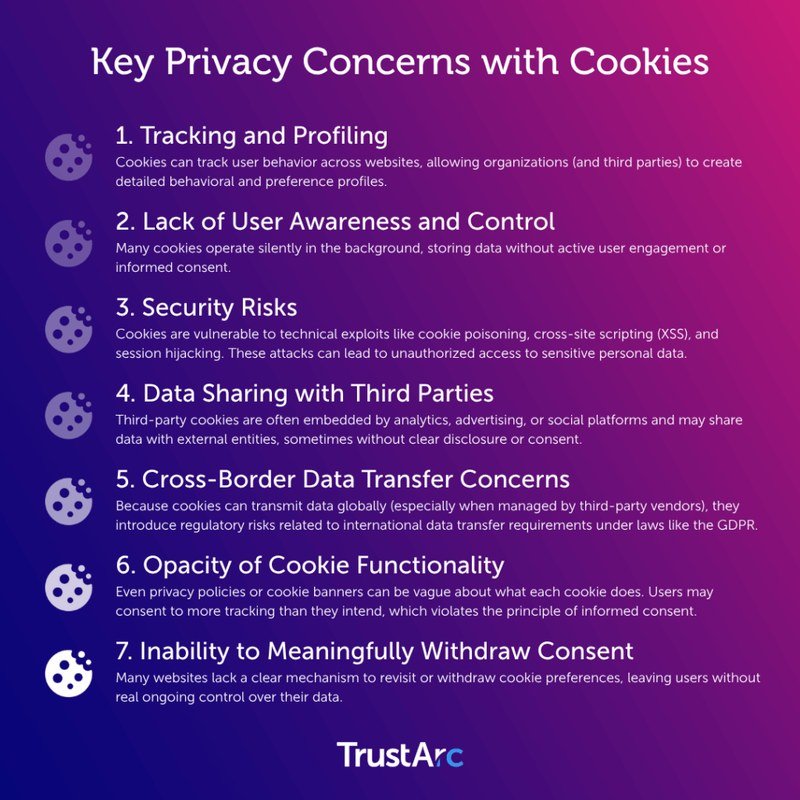
The biggest concern with cookies is behavioral tracking. Third-party cookies let ad networks follow you from one site to another, building a detailed profile of your interests, habits, and even sensitive topics you search for. The result is targeted advertising that can feel eerily specific — and many people find the level of data collection invasive.
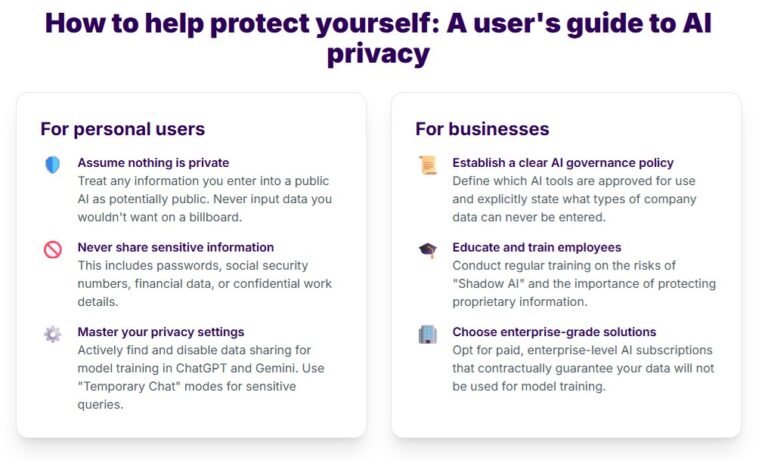
This is also where cookies intersect with broader data-privacy questions. If you’re curious about how much information digital tools collect, our guide on how to protect privacy when using AI tools covers similar ground for AI services.
Common Security Misconceptions: Are Cookies Dangerous?
Cookies themselves are not viruses, malware, or spyware. They’re plain-text files that can’t execute code or delete files. The real risks come from how cookies are used: session hijacking, where an attacker steals a cookie to impersonate you, and cross-site tracking, where your activity is aggregated without clear consent.
It’s also worth noting that cookies aren’t the only way attackers target you. Phishing scams, for example, try to trick you into handing over credentials directly — a different threat entirely. If you want to recognize those attempts, our explainer on phishing attacks is a good starting point.
Privacy Regulations and the Rise of the Cookie Consent Banner
Regulations like the EU’s GDPR and the ePrivacy Directive, along with privacy laws in California and other states, forced websites to ask for permission before placing non-essential cookies. That’s why consent banners now appear on almost every site. These laws gave users more control, but they also made the web feel cluttered with pop-ups — and many people click “Accept All” without a second thought.
Common Cookie Mistakes and How to Avoid Them
Clicking “Accept All” Without Checking Your Settings
The most common mistake is blindly accepting all cookies on every site. On many consent banners, “Accept All” also approves tracking cookies for advertising. A better habit: use the “Settings” or “Customize” option and reject non-essential cookies where possible. Legitimate sites will still work — you might just see more generic ads.
Confusing Cookies with Malware, Viruses, or Spyware
Another common mistake is treating cookies like malware. Deleting cookies won’t “clean” your computer of viruses, and keeping them won’t make you infected. Cookies are data, not programs. If you’re worried about actual malware, a reputable antivirus scan is the right tool — not a cookie purge.
Ignoring the Privacy Features Your Browser Already Has
Modern browsers ship with meaningful privacy protections that most people never touch. Chrome has a “Block third-party cookies” option, Safari has Intelligent Tracking Prevention, Firefox blocks third-party trackers by default, and Edge offers strict tracking prevention. Spending five minutes in your browser’s privacy settings can do more than any third-party extension.
- Review cookie settings in your browser’s privacy menu at least once.
- Use “Customize” on consent banners to reject non-essential tracking.
- Clear cookies occasionally if you share a device with others.
- Don’t assume “Accept All” is required for the site to function.
- Don’t treat cookies as malware or expect clearing them to fix performance issues.
- Don’t disable all cookies — many sites will break or log you out constantly.
How to Manage, Clear, and Maintain Your Cookies
Step-by-Step: Clearing Cookies in Chrome, Safari, Firefox, and Edge
Clearing cookies is quick in every major browser. Here’s how to do it:
Click the three-dot menu, go to Settings > Privacy and security > Delete browsing data. Choose “Cookies and other site data,” pick a time range, and click Delete data.
Go to Settings > Privacy > Manage Website Data. You can remove cookies for individual sites or click Remove All to clear everything.
Open Settings > Privacy & Security > Cookies and Site Data, then click Clear Data. You can also manage exceptions for specific sites.
Click the three-dot menu, go to Settings > Privacy, search, and services > Choose what to clear, select “Cookies and other site data,” and click Clear now.
Adjusting Cookie Settings for a Stronger Privacy Default
If you want a stronger default, look for “Block third-party cookies” in your browser’s privacy settings. This keeps first-party cookies working — so logins and carts still function — while stopping the most common form of cross-site tracking. Some browsers also let you auto-delete cookies every time you close the browser.
Using Private Browsing, Cookie Blockers, and Built-In Protections
Private or incognito mode doesn’t make you anonymous, but it does discard cookies when you close the window. That’s useful for shared devices or one-off browsing sessions. For everyday use, the built-in tracking protections in modern browsers are usually enough — you rarely need a separate cookie-blocker extension, and aggressive blockers can break site functionality.
If a site stops working after you clear cookies — you get logged out, your cart empties, or settings reset — that’s normal. Just revisit the site and log in again; the cookies will be recreated automatically.
The Future of Cookies: What Comes After the Third-Party Cookie?
Why Third-Party Cookies Are Being Phased Out
Major browsers have been phasing out third-party cookies for years. Safari and Firefox already block them by default, and Google has been rolling out its own deprecation plan for Chrome, though the timeline has shifted multiple times. The driving forces are privacy regulations, consumer pressure, and a broader industry shift toward less invasive tracking methods.
Emerging Alternatives: Topics API, FLoC’s Legacy, and First-Party Data
Google’s first attempt at a replacement, FLoC (Federated Learning of Cohorts), was controversial and eventually replaced by the Topics API. Instead of tracking individuals, Topics assigns broad interest categories — like “Fitness” or “Travel” — based on your recent browsing, and shares only a handful of topics with advertisers. The system is designed to keep data on your device and give you visibility into what’s being shared.
At the same time, many companies are pivoting to first-party data — information they collect directly from their own users through logins, preferences, and on-site behavior. This shift is also changing how search engines interpret signals like search history and engagement. For a deeper look, check out our article on how search engines understand user intent.
Final Verdict: Are Cookies Good or Bad for You?
Weighing the Value of Cookies Against Their Privacy Costs
Cookies are neither inherently good nor bad — they’re a tool with trade-offs. On the positive side, they make the web usable: logins, shopping carts, language preferences, and personalized recommendations all depend on them. On the negative side, third-party cookies have enabled a level of cross-site tracking that most people never meaningfully consented to.
Our Recommendation for Everyday Users in 2026
Our recommendation is simple: keep first-party cookies enabled, block third-party cookies, and clear your cookies occasionally — especially on shared devices. Use your browser’s built-in privacy settings before reaching for extensions, and treat consent banners as a real choice rather than an inconvenience. In 2026, the balance of power is finally shifting toward the user, and a few minutes of settings tweaks can make a meaningful difference to your privacy.
- Cookies are small text files that let websites remember you — they’re not malware.
- First-party cookies power logins and carts; third-party cookies power cross-site tracking.
- Block third-party cookies in your browser settings for a stronger privacy default.
- Clear cookies when needed, but don’t disable them entirely or sites will break.
- Third-party cookies are being phased out in favor of less invasive alternatives like the Topics API.
Frequently Asked Questions