Learn How to Stay Private on Public WiFi Right Now
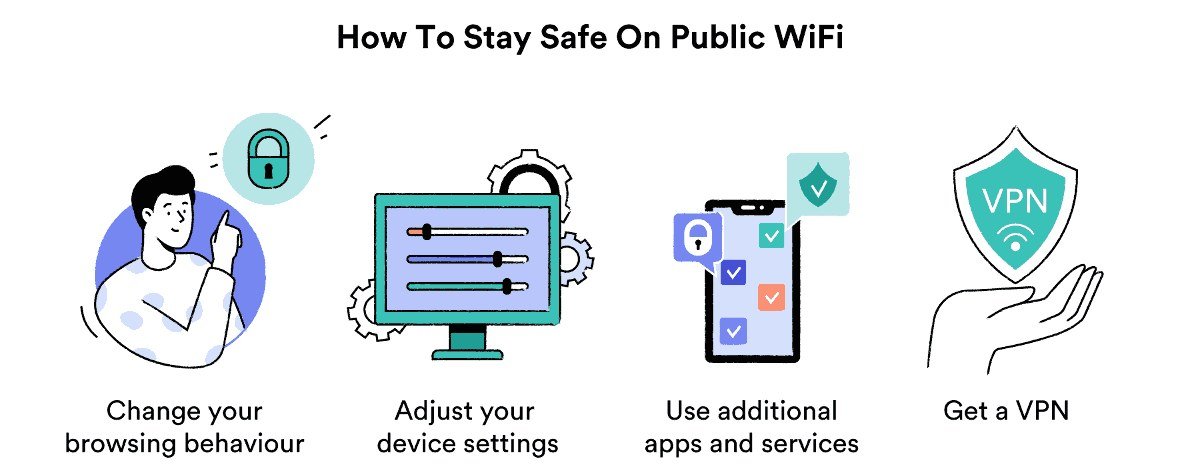
Use a VPN, stick to HTTPS sites, and verify the network name before connecting. Avoid banking and sensitive logins on public wifi, and keep your device updated.
Learning how to stay private on public wifi starts with one honest fact: free networks are convenient, but they are not private by default. The good news is that a few simple habits — a reliable VPN, HTTPS checks, and smart network choices — let you use coffee-shop, airport, and hotel wifi without handing your passwords to strangers.
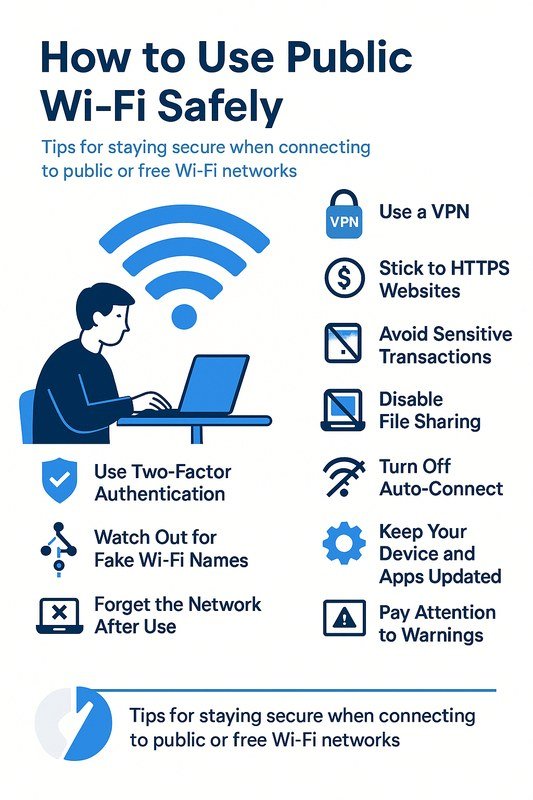
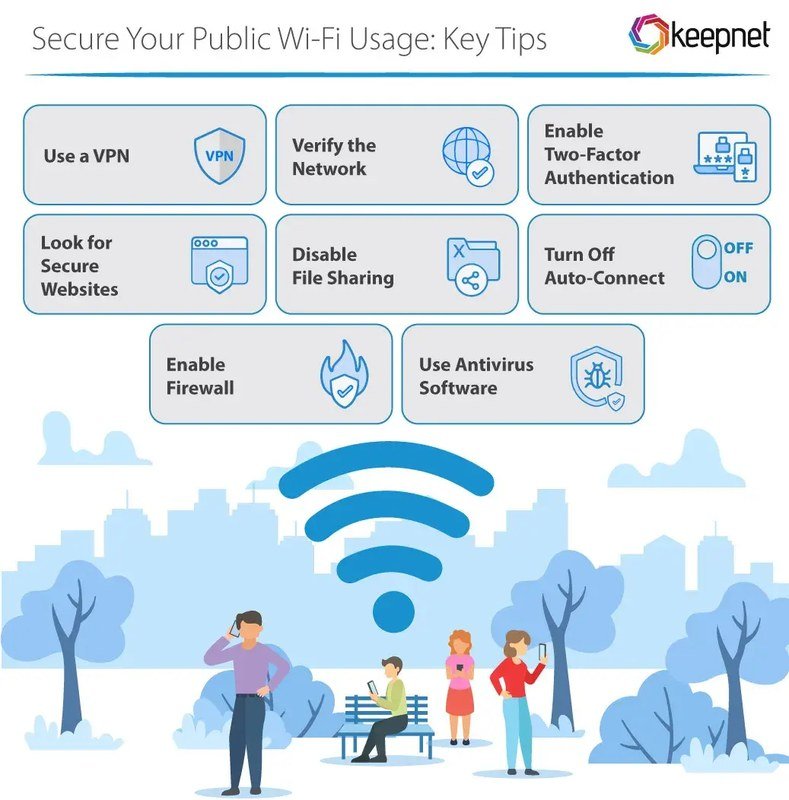
- VPN first: Turn on a reputable VPN before joining any public network.
- HTTPS always: Check for the padlock icon and never ignore browser warnings.
- Network name: Confirm the official wifi name with staff to avoid fake hotspots.
- Skip sensitive logins: Save banking and work accounts for your phone’s hotspot or home network.
- Maintain habits: Update your VPN app, rotate passwords, and disable auto-join.
The Direct Answer About How to Stay Private on Public WiFi
The direct answer is to use a layered approach: a trustworthy VPN, HTTPS-only connections, careful network selection, and a device set up so it never joins open networks automatically. No single tool makes public wifi completely private, but combining these steps closes the gaps that attackers rely on most.
Open your VPN app and connect to a server first. If you join the wifi network before the VPN is active, your device sends unprotected traffic for those first few seconds.
Fake hotspots with names like “Free Airport WiFi” are a common trick. Ask an employee for the exact network name before you join.
Look for the padlock icon in your browser. If a site shows a security warning, close the tab and avoid entering any information.
Banking, tax forms, and work logins are safer on your phone’s cellular hotspot or a trusted home network.
This layered approach matters because public wifi threats are not a single attack. An attacker can monitor traffic, set up a fake network, or steal credentials from sites that still use outdated security. A VPN encrypts your traffic so others on the same network cannot read it, but it does not protect you from phishing or malware. That is why the other steps matter just as much.
What to Look For and Who It Suits
A laptop user connects to public wifi in a cafe, with a privacy shield icon indicating security.
This approach suits anyone who regularly connects to networks they do not control: remote workers, students, frequent travelers, and anyone who checks email or social media from a café. If you have ever logged into hotel wifi or an airport lounge network, you are the target audience.
When choosing a VPN, look for the features that actually matter:
- Kill switch: cuts all internet traffic if the VPN drops, so data is never sent unprotected.
- No-logs policy: the provider should state clearly that it does not store your browsing activity.
- Modern protocol: WireGuard or OpenVPN support indicates the provider keeps up with security standards.
- Multi-device support: you want protection on your laptop, phone, and tablet without juggling separate plans.
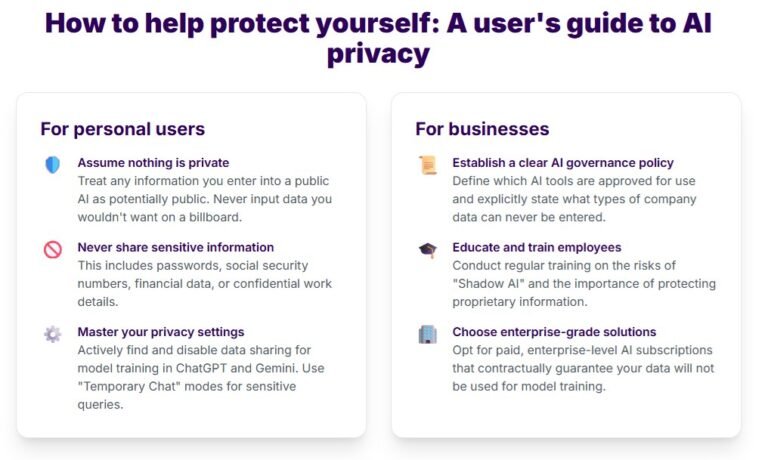
The same privacy-first mindset applies beyond wifi. If you use AI tools for work or personal tasks, the habits in our guide on how to protect privacy when using AI tools will feel familiar: limit what you share, use strong authentication, and keep software updated.
Key Specifications to Check Before You Trust a VPN
VPN marketing is full of vague promises, so it helps to check specific specifications before you commit. The table below shows the three most common protocols and what each one is best for.
| Protocol | Best For | Key Consideration |
|---|---|---|
| WireGuard | Fast, modern connections on laptops and phones | Newer codebase; check that your provider supports it |
| OpenVPN | Broad compatibility and proven stability | Can be slower on older devices |
| IKEv2 | Mobile users who switch between wifi and cellular | Good at reconnecting after network changes |
Beyond the protocol, check for AES-256 encryption, a kill switch, and DNS leak protection. If a provider does not clearly document these details, treat that as a red flag. Free VPNs can be tempting, but many fund themselves by tracking users or selling data, which defeats the purpose of staying private. Paid plans typically cost a few dollars per month, though pricing varies by provider, plan length, and region.
Benefits and Real-World Trade-Offs<
Using public WiFi requires balancing convenience with privacy risks.
Using public WiFi requires balancing convenience with privacy risks.
A VPN gives you real benefits on public wifi: your traffic is encrypted, casual snooping becomes useless, and you can browse with more confidence on networks you do not control. But the trade-offs matter too. VPNs can slow your connection, some websites block traffic from known VPN servers, and a VPN does nothing to stop phishing, fake login pages, or malware.
- Encrypts your traffic so others on the same network cannot read it
- Protects you on networks you do not control, like hotels and airports
- Works across all your devices when set up properly
- Can reduce connection speed, especially on free plans
- Does not block phishing, fake websites, or malware
- Some free providers log and sell your data
Another trade-off is convenience. Keeping a VPN on all the time is the safest choice, but some apps and sites will not work properly through a VPN, which pushes people to switch it off at the wrong moment. A better approach is to leave the VPN on whenever you are on an unfamiliar network and turn it off only when you are back on a trusted connection.
Where the Risks Are and Common Mistakes
Public wifi risks are highest in places with heavy turnover and little oversight: coffee shops, airports, hotels, conference centers, and libraries. The most common mistake is joining the first open network you see. Attackers can create a hotspot with a name that looks official, wait for people to connect, and then capture anything those devices send.
- Verify the official network name with staff before connecting
- Use a VPN every time you join an unfamiliar network
- Turn off file sharing and AirDrop-style features while connected
- Log out of sensitive accounts when you finish a session
- Logging into banking or payment apps on public wifi
- Ignoring browser warnings about expired or invalid certificates
- Leaving wifi on with auto-join enabled for open networks
- Reusing the same password across multiple accounts
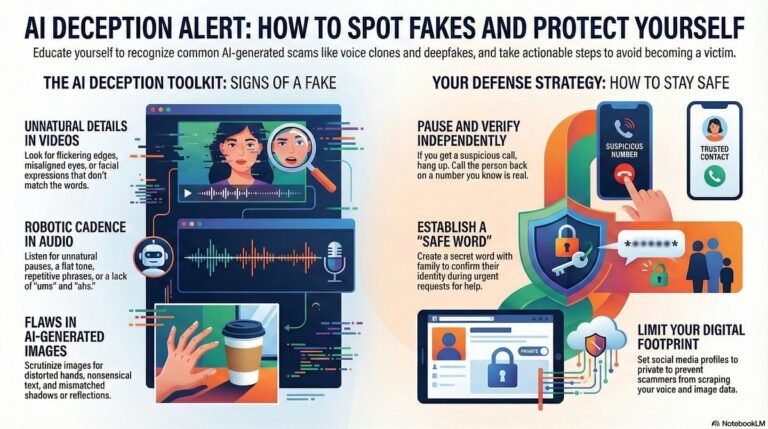
Social engineering is another part of the risk. A scammer on the same network might send a fake message that looks like it comes from your bank or a delivery service. These attacks are getting harder to spot because scammers now use AI to create convincing messages and media. If you receive an urgent request that includes a suspicious video or voice note, our guide on how to detect deepfake videos explains what to check before you trust it. And if a message claims to be from a company asking you to “confirm” details, the warning signs are the same ones covered in how to stay safe from AI scams.
Maintenance and Ongoing Habits
Staying private on public wifi is not a one-time setup. The habits below keep your protection working over time.
- VPN app updated and connected to a server
- Device operating system and browser up to date
- File sharing and network discovery turned off
- Auto-join for open networks disabled
- Two-factor authentication enabled on important accounts
Ongoing maintenance is simple: update your VPN app when new versions appear, review your saved networks and delete ones you no longer use, and change passwords for important accounts every few months or after any suspicious activity. A password manager makes this practical because you do not have to remember every credential. If you travel often, check your VPN provider’s documentation for current setup steps, since apps change over time.
Value, Alternatives, and Final Recommendation
A paid VPN is the most straightforward way to stay private on public wifi, but it is not the only option. Your phone’s cellular hotspot is often more secure than public wifi because the connection is encrypted by your carrier. If you cannot use a VPN, at least use HTTPS-only mode in your browser, avoid sensitive logins, and keep your device updated. For most people, the best value is a reputable paid VPN combined with the habits in this guide. Free VPNs can work in a pinch, but you should read their privacy policy carefully and assume that a free service has to pay for itself somehow.
- Use a VPN with a kill switch, no-logs policy, and modern protocol
- Verify the network name with staff and check for HTTPS on every site
- Save banking and sensitive logins for your phone’s hotspot or a trusted network
- Keep your VPN app, device software, and passwords updated
- Treat free VPNs with caution and read their privacy policies
Final recommendation: if you regularly use public wifi, a paid VPN is worth the small monthly cost. Pair it with the checklist above, and you will close the most important privacy gaps without turning every coffee-shop visit into a security project.
Frequently Asked Questions



One Comment