
How Websites Track You Online and How to Protect Yourself
Websites track you through cookies, browser fingerprinting, tracking pixels, and cross-device logins. You can reduce exposure by using a privacy browser, blocking trackers, reviewing permissions, and avoiding incognito-mode misconceptions.
Understanding how websites track you online is no longer just a technical curiosity—it’s a practical skill for anyone who values their privacy. From the moment you load a page, dozens of scripts, pixels, and identifiers may be working behind the scenes to build a profile of your habits, interests, and even your location.
- Tracking methods: Cookies are fading, but fingerprinting, pixels, and cross-device logins are growing.
- Incognito myth: Incognito mode only clears local history—it doesn’t hide you from trackers or your ISP.
- Privacy stack: A privacy browser plus uBlock Origin and Privacy Badger blocks most commercial tracking.
- Mobile matters: Disable ad personalization and review app permissions on both iOS and Android.
- Ongoing habit: Monthly audits of extensions, permissions, and trackers keep your exposure low.
What Website Tracking Is and Why It Matters in 2026
Website tracking refers to the collection of data about your online behavior—what you click, how long you linger, what you search for, and where you go next. That data fuels targeted advertising, personalized content, and analytics dashboards. But it also creates a detailed picture of you that you never explicitly agreed to share.
The Shift from Cookies to Persistent Fingerprinting
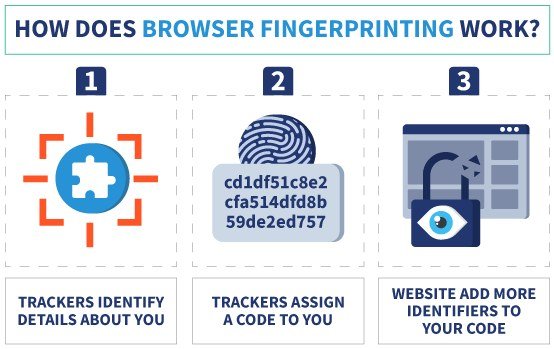
For years, cookies were the backbone of web tracking. These small text files stored in your browser let sites remember you between visits. But as browsers began blocking third-party cookies, trackers adapted. Today, browser fingerprinting has become the dominant method. It works by collecting subtle details about your device—screen resolution, installed fonts, time zone, language, and even how your graphics card renders images—to create a unique identifier that persists even after you clear your cookies.
Fingerprinting is harder to detect and much harder to block. You can’t simply “clear” a fingerprint the way you clear cookies, which makes it a far more invasive form of tracking.
Why Your Data Has Become the Product
The economics of the internet run on data. Free services—search engines, social media, video platforms—generate revenue by selling advertisers access to your attention, which is priced based on how well they know you. The more detailed your profile, the more valuable that access becomes. This isn’t a conspiracy theory; it’s the stated business model of some of the largest tech companies in the world.
Not all tracking is malicious. Some trackers help websites improve performance, remember your cart, or keep you logged in. The problem is the invisible, cross-site variety that follows you without consent.
The Main Ways Websites Track You Online
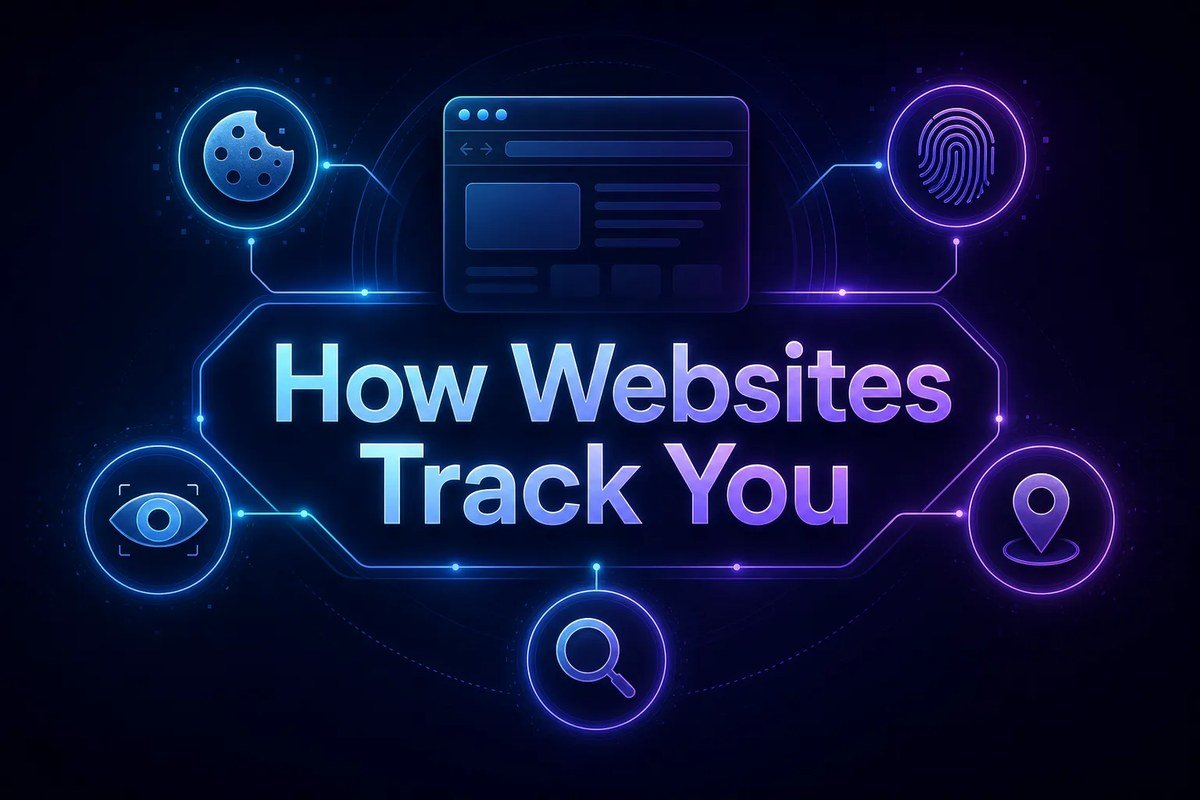
Icons of cookies, device fingerprinting, and web beacons represent common tracking techniques.
Understanding the mechanisms is the first step to defending against them. Here are the primary methods in use today.
First-Party vs. Third-Party Cookies
First-party cookies are set by the site you’re visiting. They remember your login status, language preference, and shopping cart—generally helpful and relatively benign. Third-party cookies, by contrast, are set by domains other than the one you’re on. They follow you across the web, building a cross-site profile of your interests. Major browsers have largely blocked third-party cookies by default, but that has pushed trackers toward other techniques.
Browser Fingerprinting and Device Identification
As mentioned earlier, fingerprinting collects a constellation of device attributes. Combined, these attributes often form a signature unique enough to identify you across sessions. Even small changes—like a browser update—can alter your fingerprint, but trackers have become sophisticated at matching partial fingerprints over time.
Tracking Pixels, Session Replay, and Invisible Scripts
Tracking pixels are tiny, invisible images embedded in emails or web pages. When your browser loads the pixel, it signals the sender that you opened the email or visited the page. Session replay tools go further, recording your mouse movements, clicks, and scroll behavior to analyze how you interact with a site. Invisible scripts can capture keystrokes, form inputs, and even pause times before you hit submit.
Cross-Device Tracking via Email and Social Logins
Logging into a site with your Google, Facebook, or Apple account creates a direct link between that visit and your identity. Even if you never log in, trackers can match you across devices using email addresses, phone numbers, or shared Wi-Fi networks. This cross-device tracking is why you might search for a product on your phone and see ads for it on your laptop.
Who Needs Protection Most: Assessing Your Risk Level
Your risk level depends on who you are and what you do online. A college student browsing social media faces different threats than a journalist covering sensitive topics or a business owner handling client data.
Everyday Browsers vs. High-Profile Targets
Everyday browsers are primarily at risk from commercial tracking—ads, price discrimination, and data brokers compiling profiles that get sold without your knowledge. High-profile targets—activists, journalists, executives, or anyone with access to sensitive information—face more serious threats, including surveillance, phishing tailored to their interests, and even physical risk if location data leaks.
How Tracking Affects Pricing, Ads, and Your Digital Reputation
Tracking doesn’t just determine which ads you see. It can influence the prices you’re quoted for flights, hotels, and insurance. Data brokers may sell your profile to employers, landlords, or lenders, who use it to make decisions about you. Your “digital reputation” is increasingly out of your control.
What to Look for in a Privacy-First Browsing Setup<
An illustration showing privacy tools like VPN, ad blocker, and cookie controls.
An illustration showing privacy tools like VPN, ad blocker, and cookie controls.
Building a privacy-first setup doesn’t require technical expertise, but it does require knowing what to prioritize.
Choosing a Privacy-Focused Browser and Search Engine
Browsers like Brave, Firefox (with strict privacy settings), and Tor offer varying levels of protection. Brave blocks trackers and ads by default. Firefox’s Enhanced Tracking Protection blocks known trackers, and Tor routes your traffic through multiple relays for near-anonymity. For search, DuckDuckGo and Startpage don’t track your queries. The key is to pick a browser that matches your comfort level with trade-offs—Tor is slow, for example, but extremely private.
Essential Extensions: Ad Blockers, Script Blockers, and Anti-Fingerprinting Tools
uBlock Origin blocks ads and trackers at the network level. NoScript disables JavaScript on untrusted sites, which breaks many tracking scripts but also breaks some site functionality. Privacy Badger learns to block trackers as it encounters them. Canvas Defender or similar tools add noise to your fingerprint, making it harder to identify you uniquely.
Understanding Privacy Settings vs. Incognito Mode Limitations
Incognito mode only prevents your browser from saving history and cookies locally. It does nothing to hide your activity from websites, your internet service provider, or your employer. True privacy requires blocking trackers at multiple levels, not just clearing your local history.
Pair a privacy browser with a reputable search engine and a content blocker. Each layer closes a different gap—one stops ads, another stops fingerprinting, and the search engine stops query logging.
Step-by-Step: How to Protect Yourself Starting Today
You don’t need to overhaul your entire digital life at once. Start with these practical steps.
Immediate Actions: Clearing Data and Adjusting Permissions
Delete cookies, cache, and site data from your browser settings. Do this weekly if you’re not using a privacy browser.
Check which sites have access to your camera, microphone, location, and notifications. Revoke anything you don’t actively use.
Each logged-in account is a tracking link. Log out of social media and shopping accounts when you’re done.
Advanced Tactics: VPNs, DNS-Level Filtering, and Isolated Browser Profiles
A reputable VPN encrypts your traffic and hides your IP address from websites. DNS-level filtering, such as NextDNS or Pi-hole, blocks trackers before they even reach your device. Isolated browser profiles—separate profiles for work, shopping, and personal browsing—prevent trackers from connecting your activities across contexts.
Mobile Tracking: What to Disable on iOS and Android
On iOS, go to Settings > Privacy & Security and review app permissions, disable “Allow Apps to Request to Track,” and turn off Location Services for apps that don’t need it. On Android, go to Settings > Privacy and disable “Ads” personalization, review app permissions, and consider using a private DNS. Both platforms let you restrict background app refresh, which reduces data collection.
Common Privacy Mistakes to Avoid
Even well-intentioned users make mistakes that undermine their efforts. Here are the most common.
Relying on Incognito Mode as a Silver Bullet
As noted, incognito mode is not a privacy shield. It only prevents local history storage. Your ISP, the websites you visit, and any trackers embedded on those sites still see your activity.
Ignoring App Permissions and Login Tracking
Apps often request far more permissions than they need. A flashlight app doesn’t need your contacts. A weather app doesn’t need your precise location. Similarly, using “Sign in with Google” on every site creates a tracking trail that’s hard to break.
Overlooking the Risks of Free VPNs and “Privacy” Extensions
Free VPNs often monetize your data instead of protecting it. Many have been caught logging user activity or selling bandwidth. Stick with reputable paid VPNs that have undergone independent audits. Similarly, some “privacy” extensions are actually data collectors in disguise—research before installing.
Maintaining Privacy Over Time: A Care Routine for Your Digital Life
Privacy isn’t a one-time setup; it’s an ongoing practice. Like cleaning your home, it requires regular attention.
Monthly Audits of Permissions, Extensions, and Trackers
- Review and remove unused browser extensions
- Check site permissions and revoke unnecessary access
- Run a tracker scan using tools like Ghostery or Firefox’s built-in protections
- Update your browser and privacy tools to the latest versions
- Clear cookies and site data for sites you no longer visit
Managing Your Data Footprint with Opt-Out Tools and Privacy Laws
Data brokers are required to honor opt-out requests in many jurisdictions, but the process is often tedious. Services like DeleteMe or PrivacyBee automate this for a fee. You can also exercise your rights under laws like the GDPR or CCPA to request data deletion from companies that hold your information. It’s worth checking whether your state or country offers such protections.
Final Verdict: Is Complete Online Anonymity Realistic in 2026?
The honest answer is no—not completely. As long as you use the internet, some entity will have some data about you. But that doesn’t mean privacy is futile. It means you should focus on reducing your exposure rather than chasing perfection.
What Protection Can and Cannot Do
Privacy tools can stop most commercial tracking, hide your IP address, and prevent fingerprinting. They cannot stop the sites you log into from knowing who you are. They cannot prevent your employer from monitoring your work device. They cannot undo data that’s already been collected and sold. Understanding these limits helps you set realistic expectations.
Our Bottom-Line Recommendation for Balanced Privacy
- Use a privacy-focused browser (Brave or Firefox with strict settings) and pair it with uBlock Origin and Privacy Badger.
- Stop relying on incognito mode—it doesn’t protect you from trackers.
- Review app permissions and disable cross-app tracking on your phone.
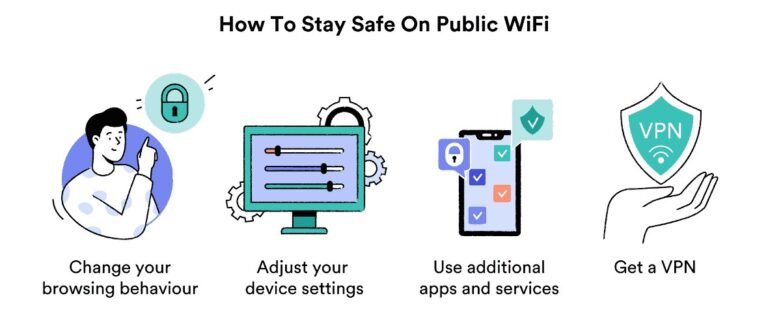
- Invest in a reputable paid VPN if you regularly use public Wi-Fi or want to hide your IP.
- Conduct a monthly audit of extensions, permissions, and trackers to stay ahead.
You don’t need to be paranoid to be private. You just need to be intentional. By understanding how websites track you online and taking a few consistent steps, you can reclaim a meaningful degree of control over your digital identity. Start with the basics, build from there, and remember that every layer you add makes you a harder target.
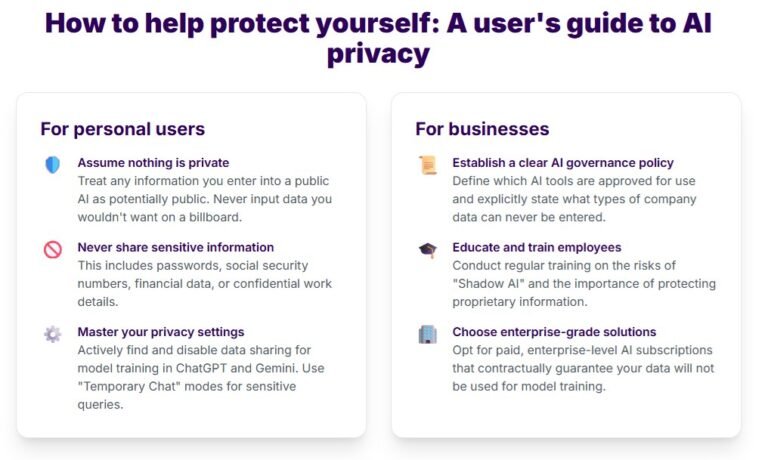
For more on protecting your digital footprint, check out our guide on how to protect privacy when using AI tools and explore our online privacy category for deeper dives into related topics. You might also find our article on how to stay safe from AI scams useful, as many scams rely on the same tracking data to target victims.
Frequently Asked Questions


One Comment